
Reports
Stock Update Selling Price
Items whose purchase cost changed, with room to type new selling and promotion prices and print them for approval.
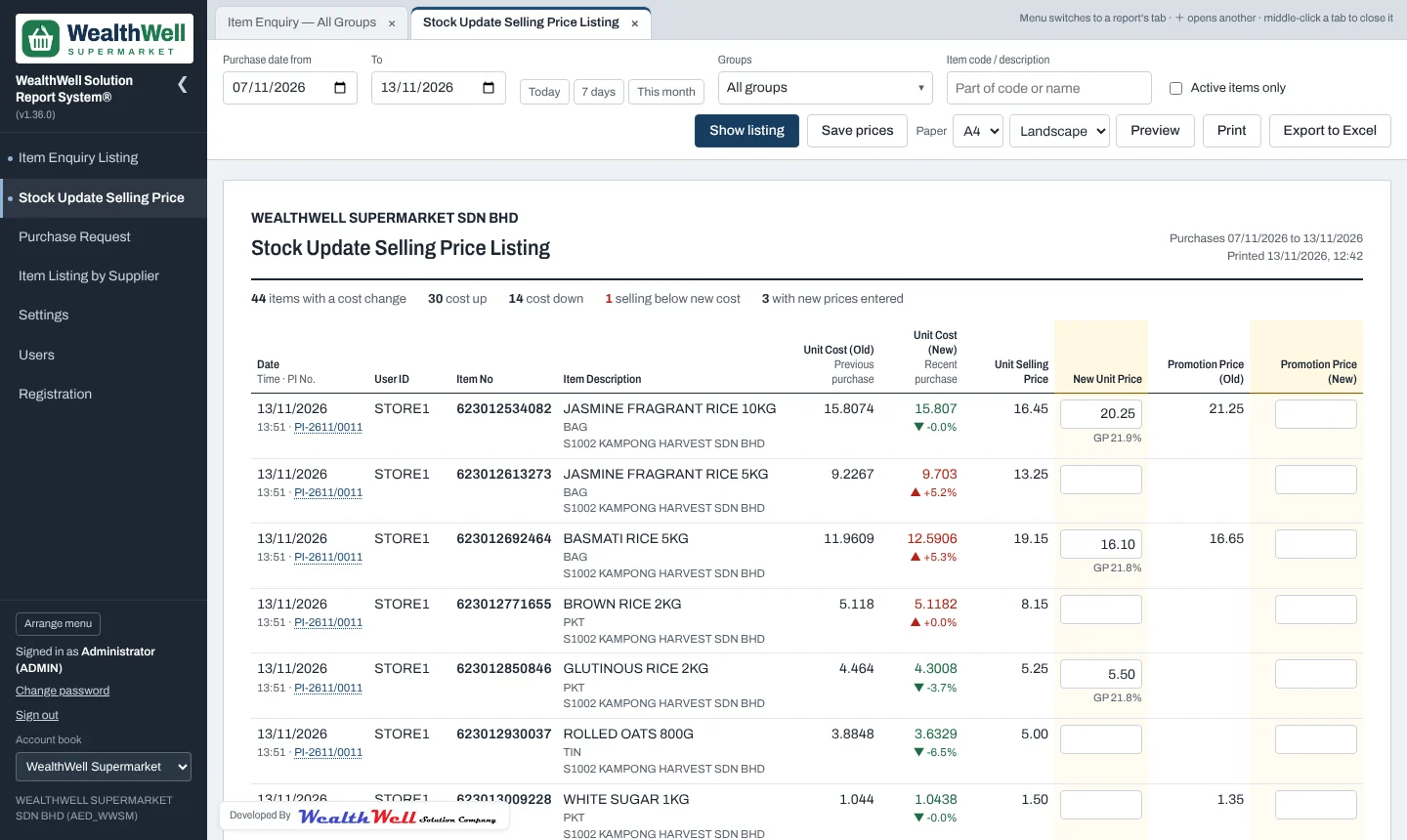
How it works
For every item, the report compares the cost on its latest Purchase Invoice with the invoice before that. Items whose latest invoice falls in the chosen date range and whose cost changed are listed, newest first. Cancelled invoices are ignored. Costs are worked out per base unit, after line discount and currency rate.
- A red ▲ means the cost went up, a green ▼ that it went down, with the percentage.
- Date / Time · PI No. shows when the invoice was entered and by whom. Click the invoice number to open the invoice.
- The summary counts items with a cost change, how many went up or down, and how many are now selling below the new cost.
Choosing the dates
Use the date boxes or the Today, 7 days and This month buttons, then Show listing. You can also narrow the list by group or item.
Typing new prices
- Type the New Unit Price and, if needed, the Promotion Price (New).
- The gross profit on the new cost is shown under each typed price. It turns red if the price is below cost.
- Prices are saved automatically a moment after you stop typing, or click Save prices.
- Print the listing and have it signed in the Prepared By and Approved By boxes.
Important
Typed prices are kept in the report system for approval. They are not written into AutoCount. After approval, update the prices in AutoCount as usual.
Note
Only people whose role includes Enter / save new prices can type prices. Others see the listing read-only.