Start here
Getting started
Signing in, finding your way around the report window, and the everyday controls every report shares.
Signing in
Open the address your administrator gave you, for example http://shop-server:3030, in Chrome or Edge.
Sign in with your AutoCount user ID and your report password. Only users that are active in AutoCount can sign in.
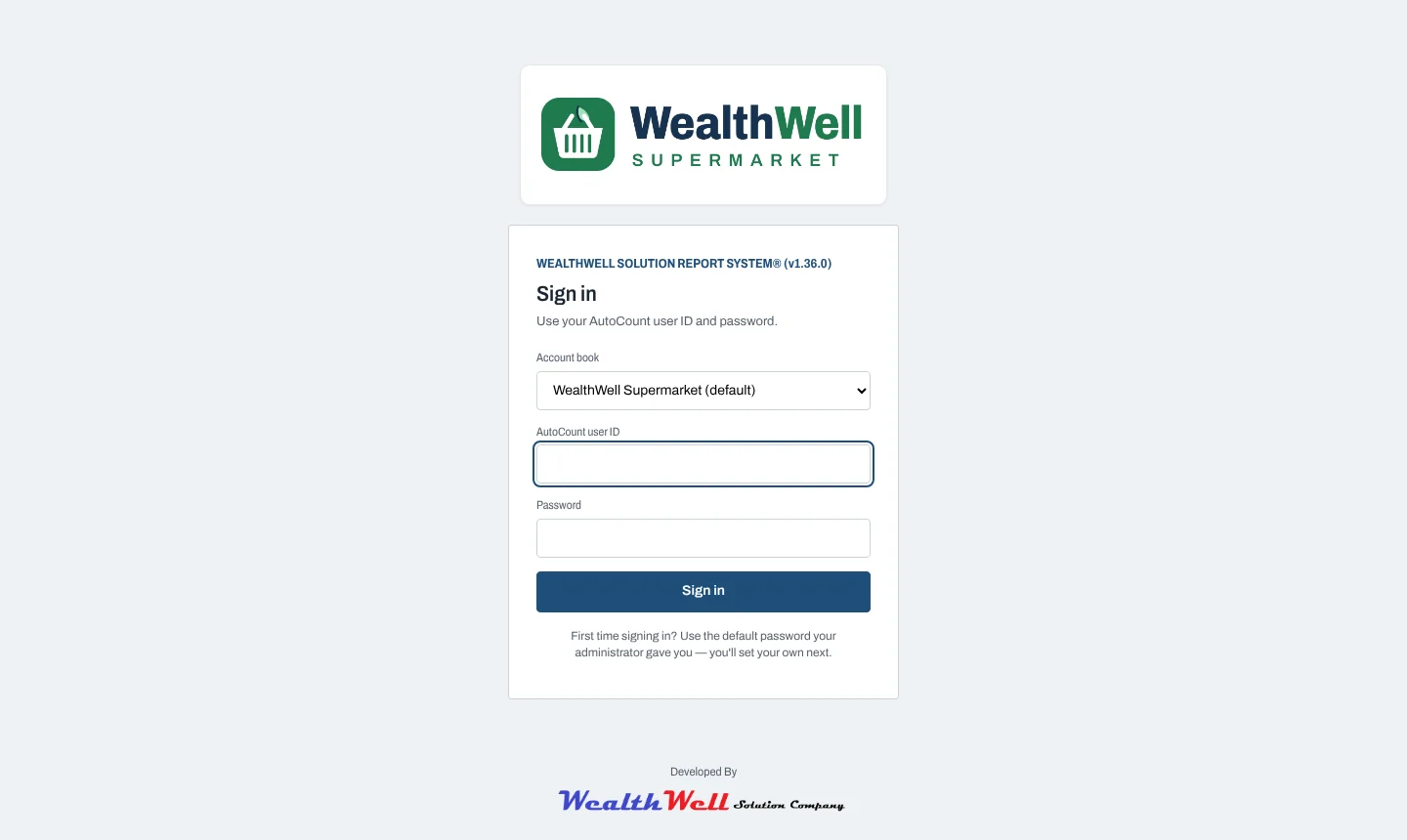
- First time? Use the default password your administrator gives you. You are then asked to choose your own.
- Your report password is separate from AutoCount's. You may use the same one, but changing it here does not change AutoCount.
- Forgot it? An administrator can reset it on the Users page.
demo.The welcome page
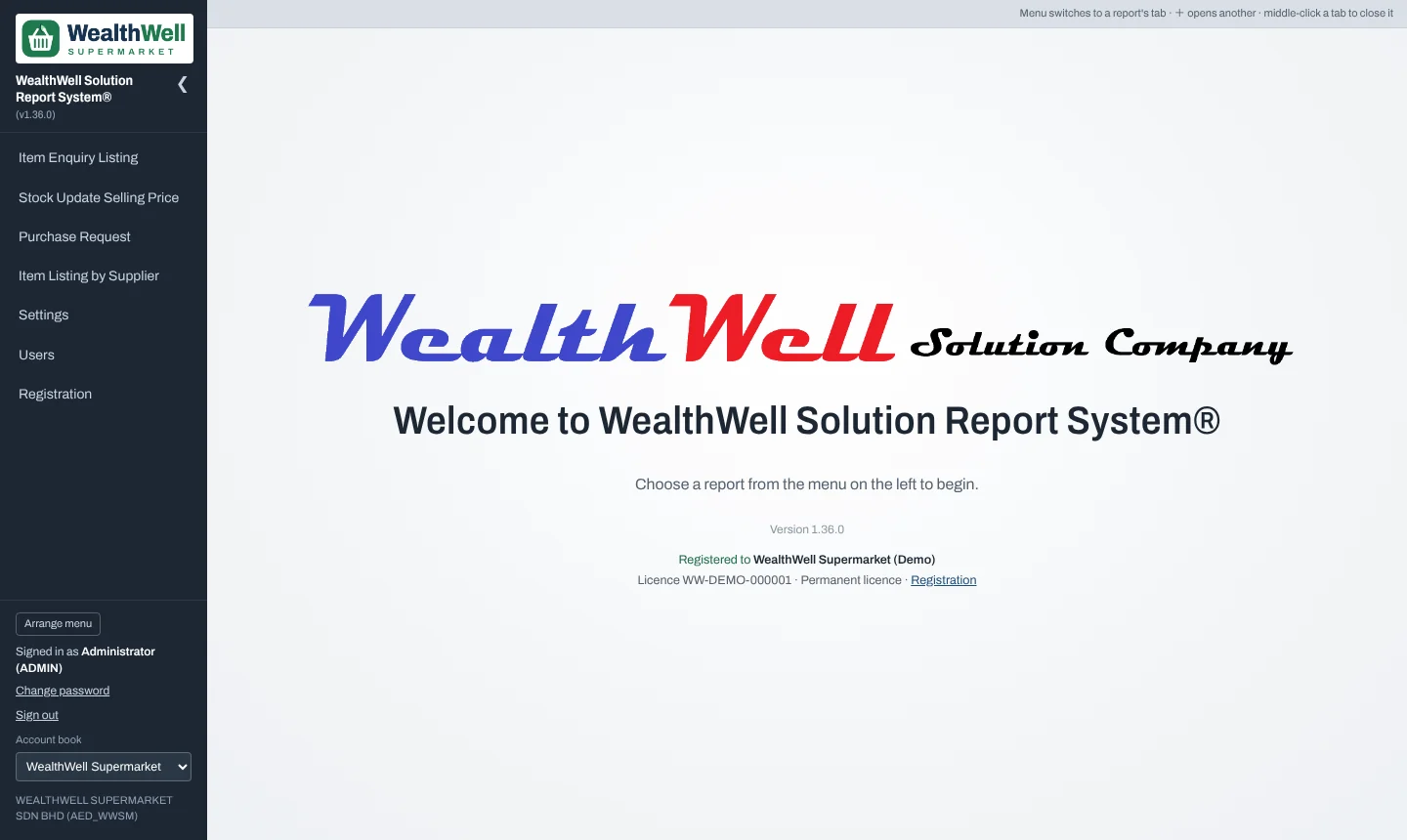
After signing in you see the welcome page whenever no report is open. It shows the version and the registration details.
Reports open in tabs
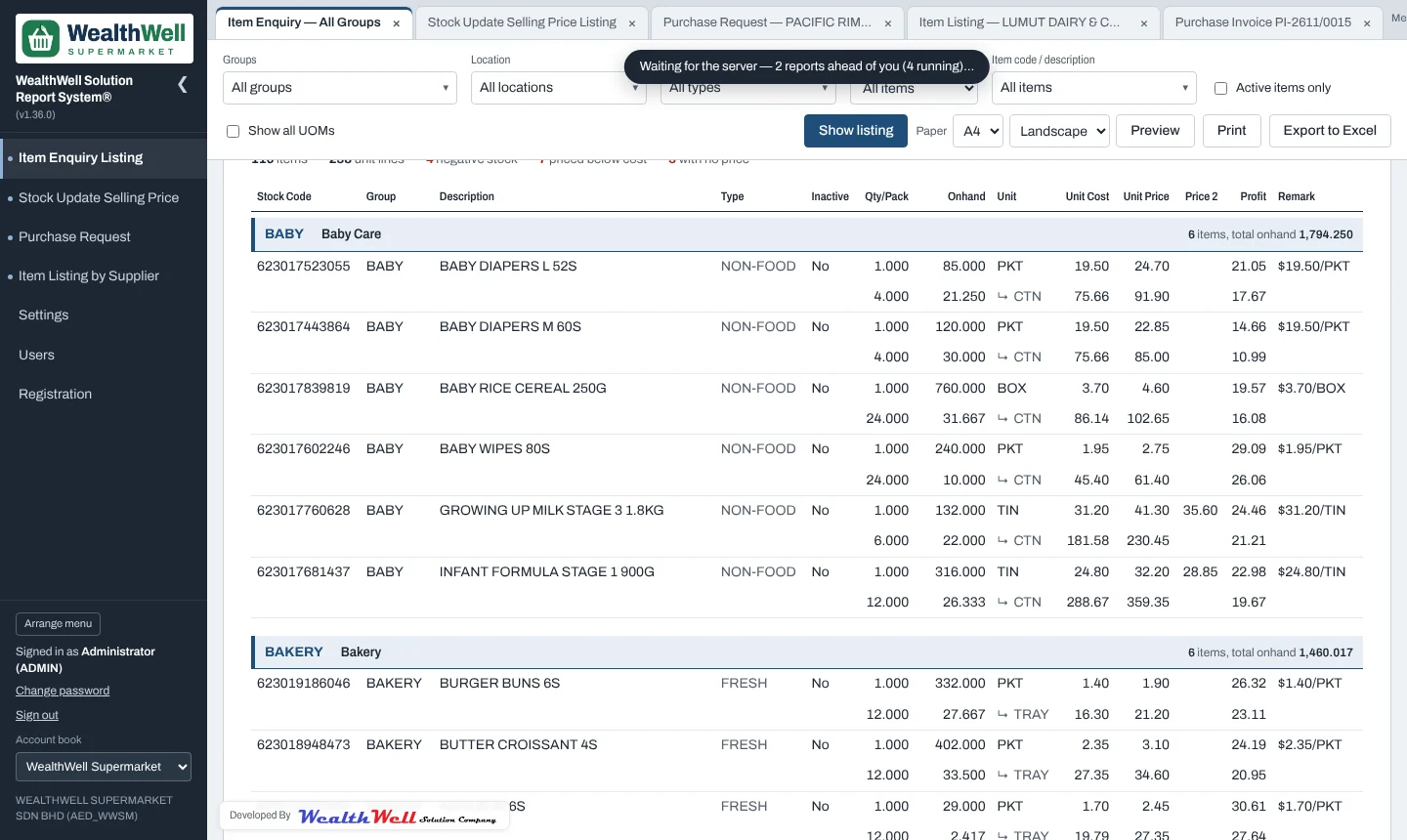
Click a report in the menu to open it in a tab. Each tab keeps its own filters, so you can keep, say, two suppliers open side by side.
- Clicking a menu item again goes back to that report's tab instead of opening another one.
- The + button that appears when you point at a menu item opens another tab of the same report.
- Close a tab with its × or by middle-clicking it. Drag tabs to put them in a different order.
- Your tabs come back the next time you open the system on the same PC.
- If a tab has unsaved work (a purchase request, typed prices) you are asked before it closes.
The menu
The menu on the left lists the reports you are allowed to open. At the bottom are Change password, Sign out and, when more than one is linked, the Account book switcher. Switching account book reloads every open tab with the other book's data. The ‹ button folds the menu away to give the report more room.
Controls every report shares
| Control | What it does |
|---|---|
| Multi-select lists (Groups, Location, Item type…) | Tick as many as you like. Nothing ticked means all. Type in the box at the top of the list to find an entry. |
| Show listing / Load items | Runs the report with the chosen filters. Filters are kept in the tab's address, so a refreshed tab comes back the same. |
| Paper and orientation | A4, A3 or A5, portrait or landscape. Remembered per report. See Printing. |
| Preview | Shows the report as it will print, with red lines where pages end. |
| Prints at the chosen size. The sign-off footer always sits at the bottom of the last page. | |
| Export to Excel | Downloads the rows as a CSV file that opens in Excel. Long item codes keep their digits. |